[ docs ]
Getting started
Selah is a Bible reader that runs in your terminal, the black window programmers type commands into. You do not need to be a programmer to use it. If you can type john 3 and press enter, you can read with Selah.
Install
On Linux or macOS, open a terminal and paste this line:
curl -fsSL https://selah.hallelx2.com/install | sh
On Windows, open PowerShell (search for it in the Start menu) and paste this line:
irm https://selah.hallelx2.com/install.ps1 | iex
The installer picks the right build for your computer and checks it against its SHA-256 checksum before keeping it.
- On Linux and macOS it goes in
~/.local/bin. If that folder is not on your PATH yet, the installer prints the line to add. - On Windows it goes in
%LOCALAPPDATA%\Programs\selah, and the installer adds that folder to your PATH. Open a new window afterwards.
Every build and its checksum is also on the download page.
Your first launch
Type selah and press enter.
The first launch downloads the King James Version and the Berean Standard Bible, about 16 MB, once. After that Selah needs no network to read.
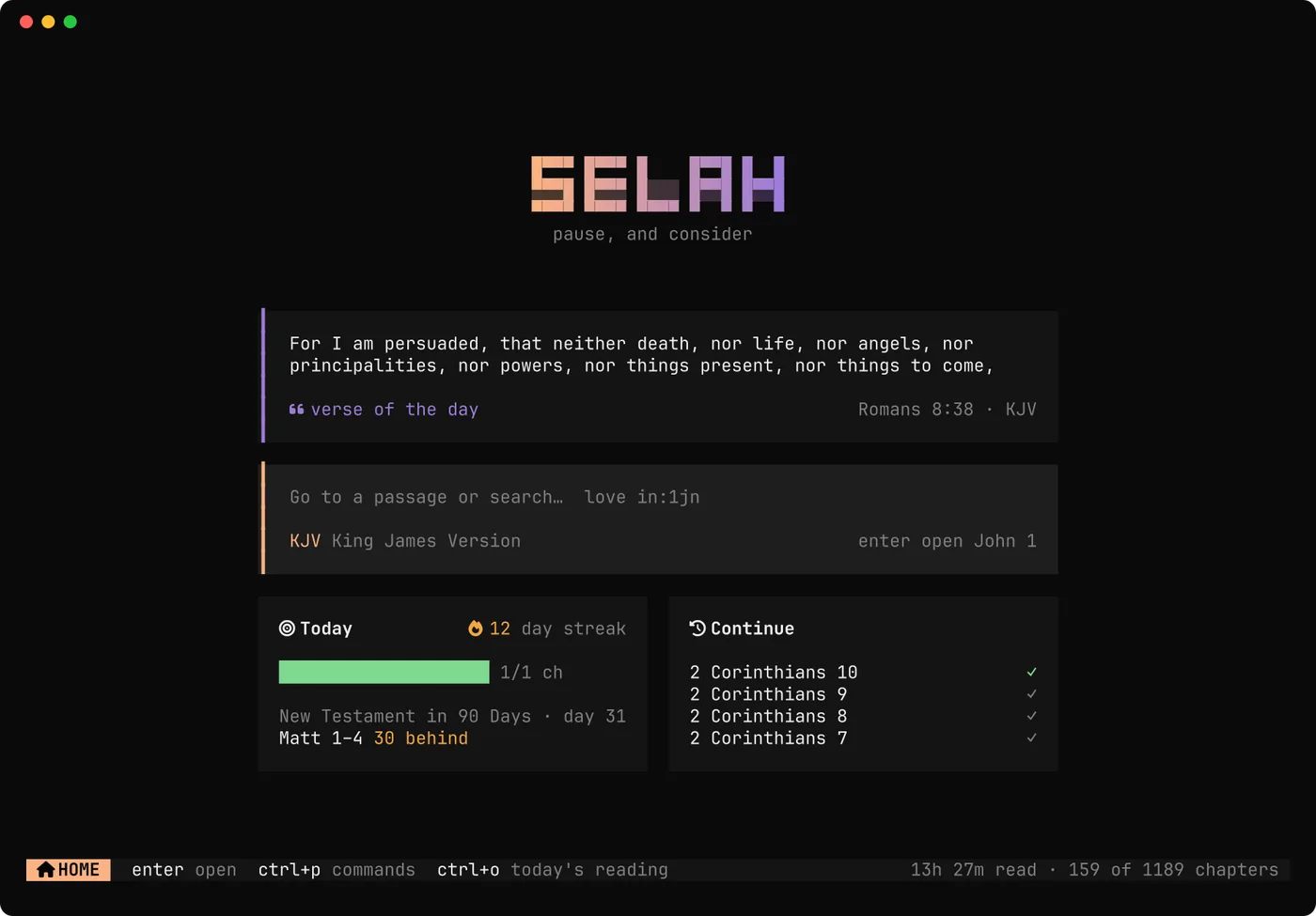
The home screen shows:
- the verse of the day
- a box where you type a passage
- your progress today
- the chapters you were reading last
The first time you open a chapter, a card lists the eight keys that matter. Press any key to put it away.
Open a passage
Type a reference and press enter. Selah understands the ways people write them:
john 3,jn 3:16,1 cor 13:4-7,song of songs 2,ps 23- whole phrases, like
resume luke 21orgo to romans 8 - words, too: type
living waterand enter searches for it
You can also open a passage straight from the terminal:
selah john 3:16
In the reader, o opens a box to go anywhere else, and esc goes back home.
Reading
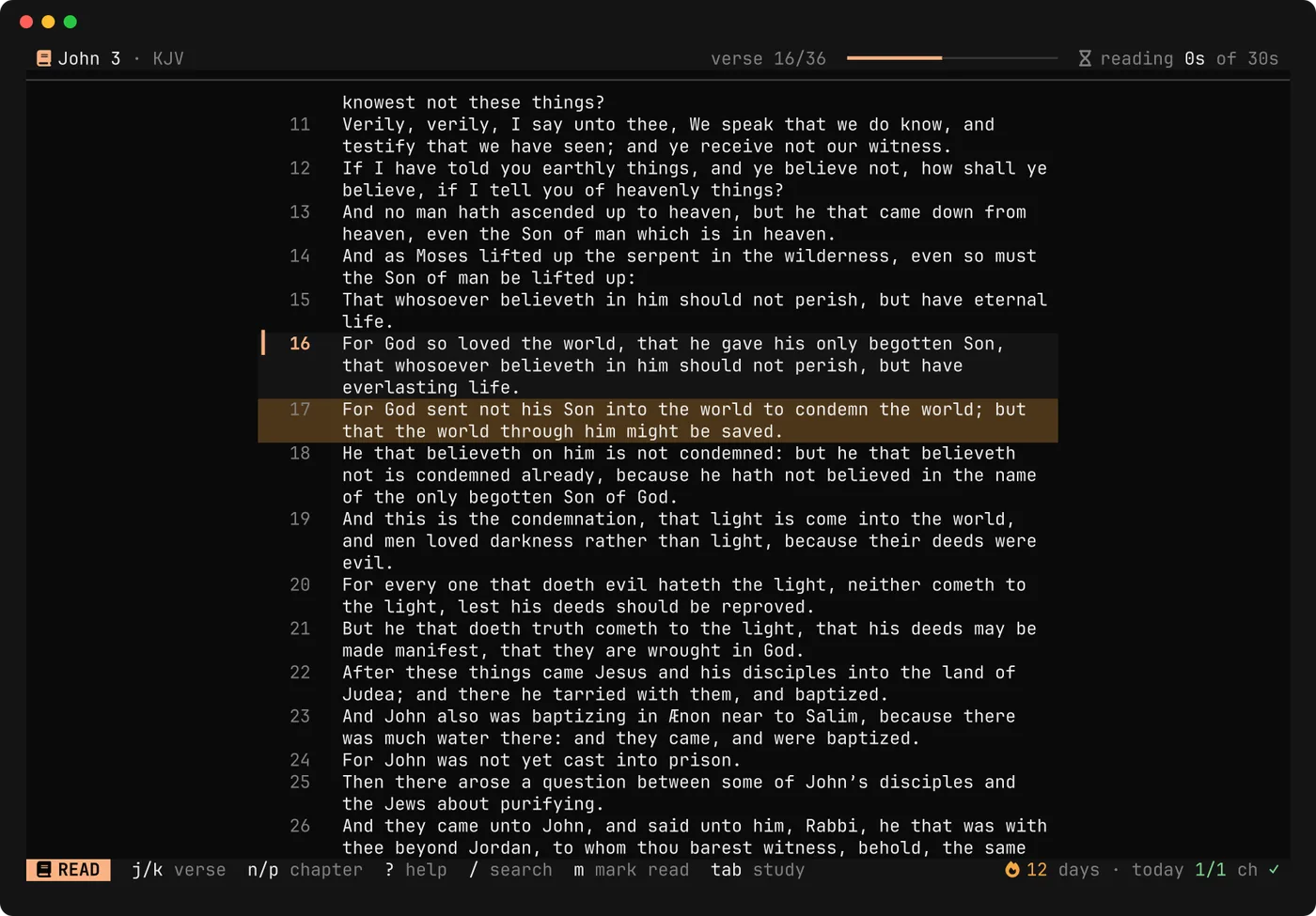
| Key | What it does |
|---|---|
j k or ↓ ↑ | next / previous verse |
n p or → ← | next / previous chapter |
space | next page |
g G | first / last verse |
16 then enter | jump to verse 16 |
h | highlight the verse (again for another colour) |
b | bookmark it; B lists your bookmarks |
v then y | select several verses, then copy them |
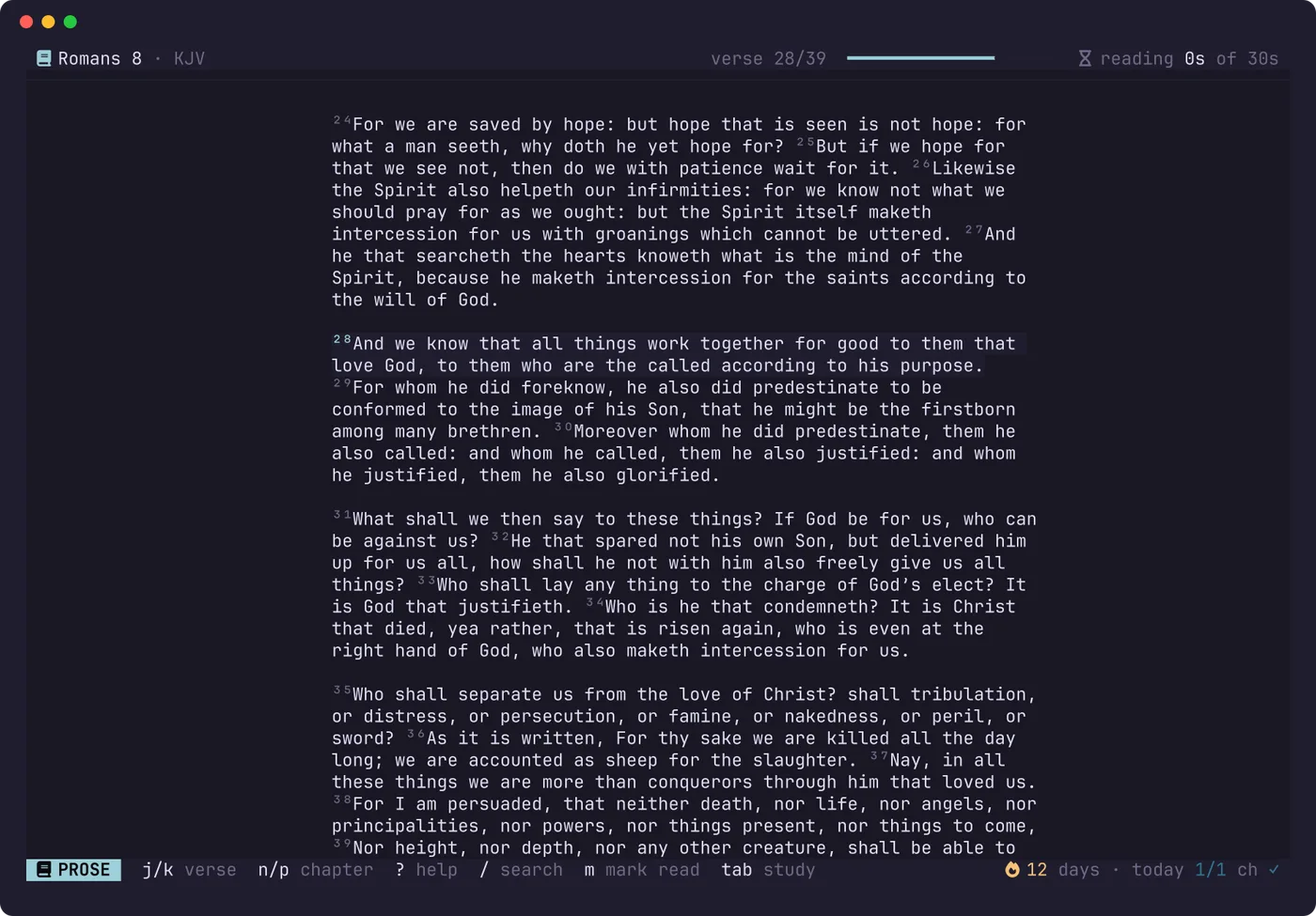
w | flowing paragraphs, or one verse per line |
z | focus mode: everything but the verse you are on fades |
- = | narrower / wider text |
The header shows how much longer you need to spend before the chapter counts as read. It counts only real reading, explained below.
The study desk
Press tab in the reader. A pane opens beside the text, and it follows the verse you are on. Press tab again to go back to the text. ctrl+l hides it.
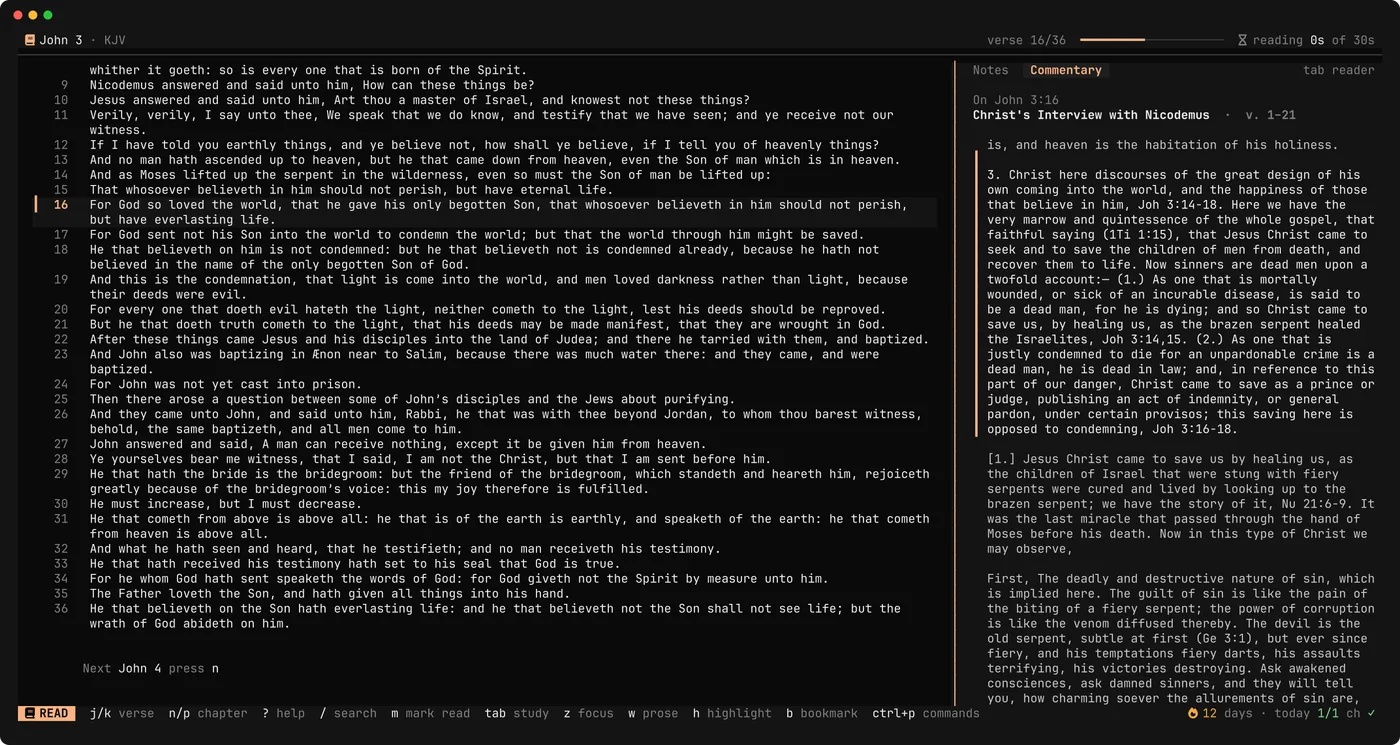
- Notes: your note on this verse, and a journal for the whole chapter. Just type; it saves as you go.
- Commentary: Matthew Henry on this verse.
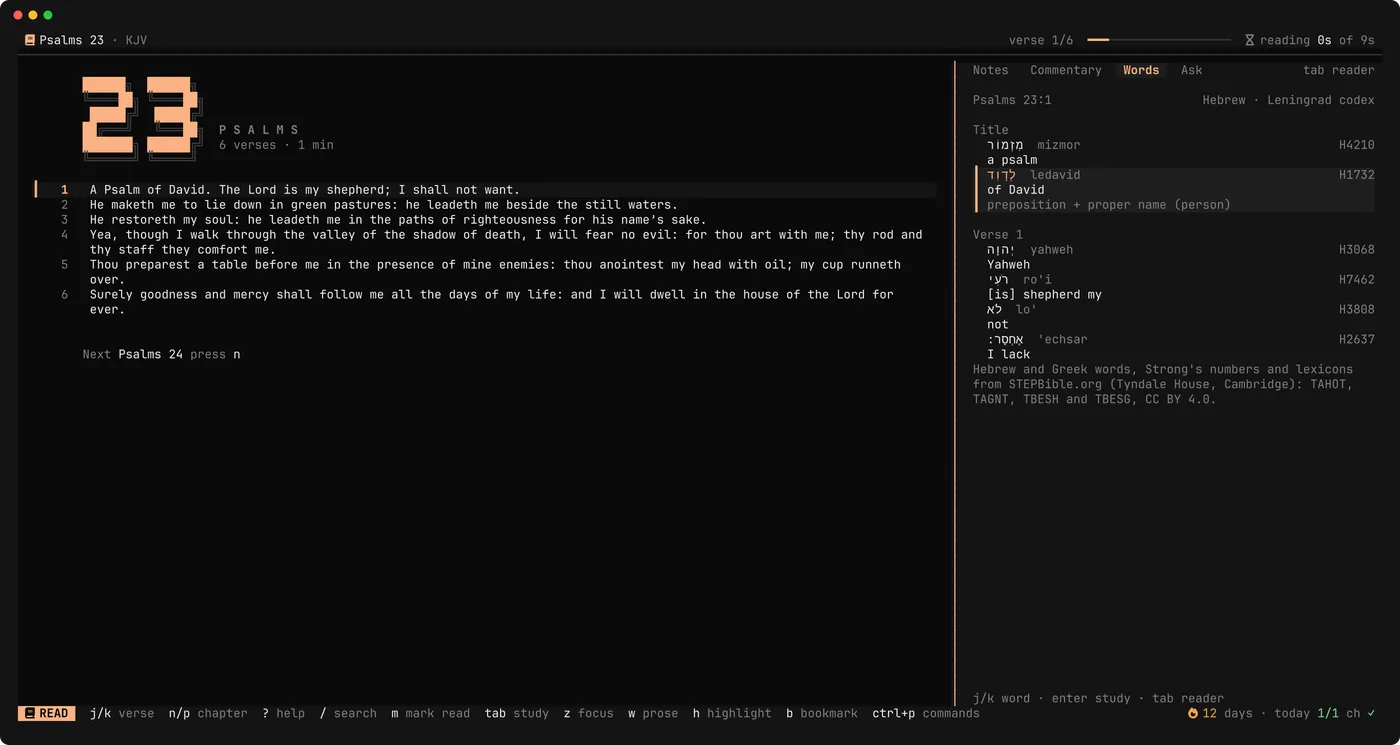
- Words: the Hebrew or Greek behind the verse.
- Ask: questions answered by Claude Code or Codex, if you have one.
Press the number to switch tabs.
Matthew Henry
The commentary is a separate download of about 14 MB. Install it once:
selah install commentary
The Hebrew and Greek
The original words are about 108 MB. Install them once:
selah install concordance
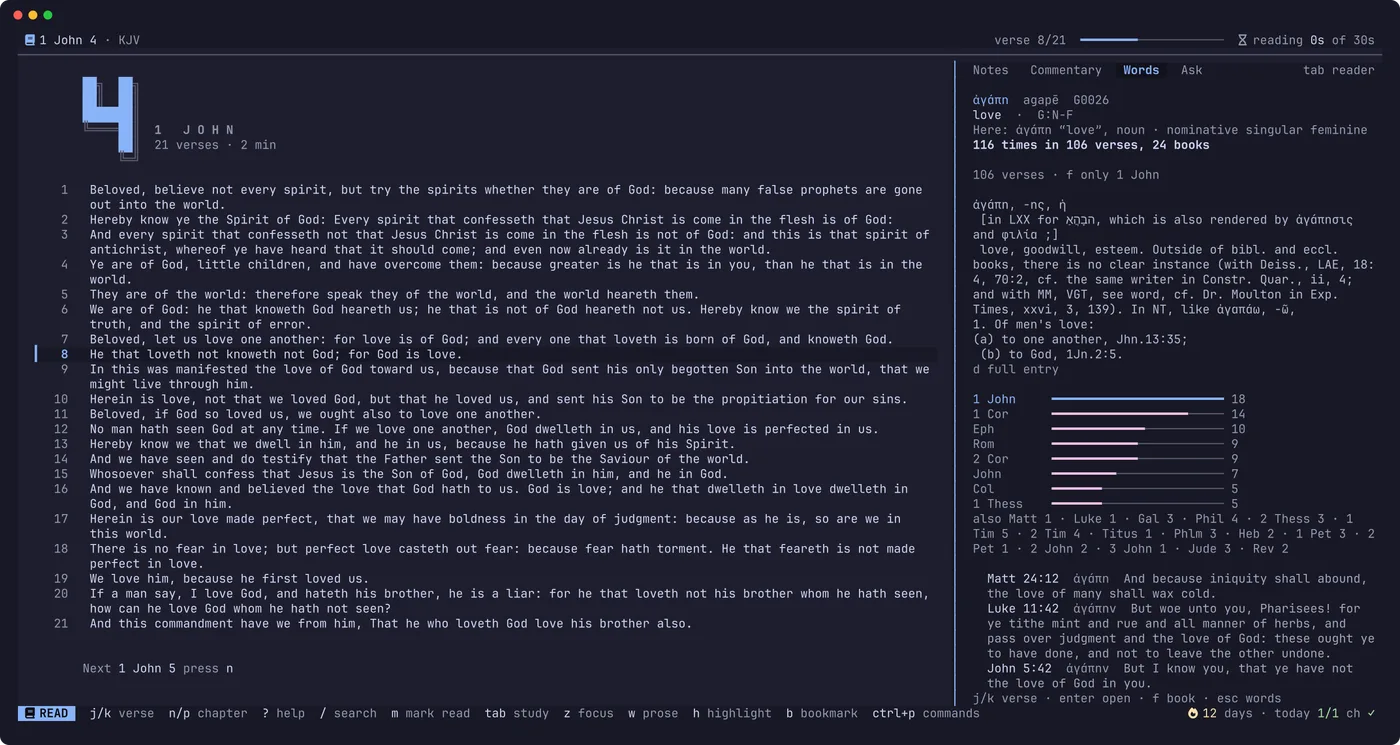
Each word shows its transliteration, an English gloss, its Strong's number and its grammar in plain words. Press enter on a word for a study: the dictionary entry, how often it occurs, and every verse that uses it.
enteron a verse there opens it in the reader.fnarrows the list to the book you are reading.escgoes back.
Ask
Ask answers questions about the chapter you are reading, using your own Claude Code or Codex. Selah does not include an AI and holds no keys. It needs one of them installed and signed in:
- Claude Code: claude.com/claude-code
- Codex: developers.openai.com/codex
Then press 4 in the study desk, type a question and press enter.
- Answers cite the text, and
ctrl+ropens the references they cite. ctrl+ssaves the answer as a note on the current verse.- If the agent suggests a note, nothing is saved unless you press
ctrl+k. - Each chapter keeps its own conversation.
If you have both agents, Selah uses the first it finds. Set "agent": "claude" or "agent": "codex" in the settings file to choose.
Selah in your own agent
selah mcp serves Selah's tools to Claude Code, Codex or any MCP client. Add it once:
claude mcp add selah -- selah mcp
codex mcp add selah -- selah mcp
Your agent can then read passages, search, consult Henry, study the original words and see your notes.
Doré's engravings
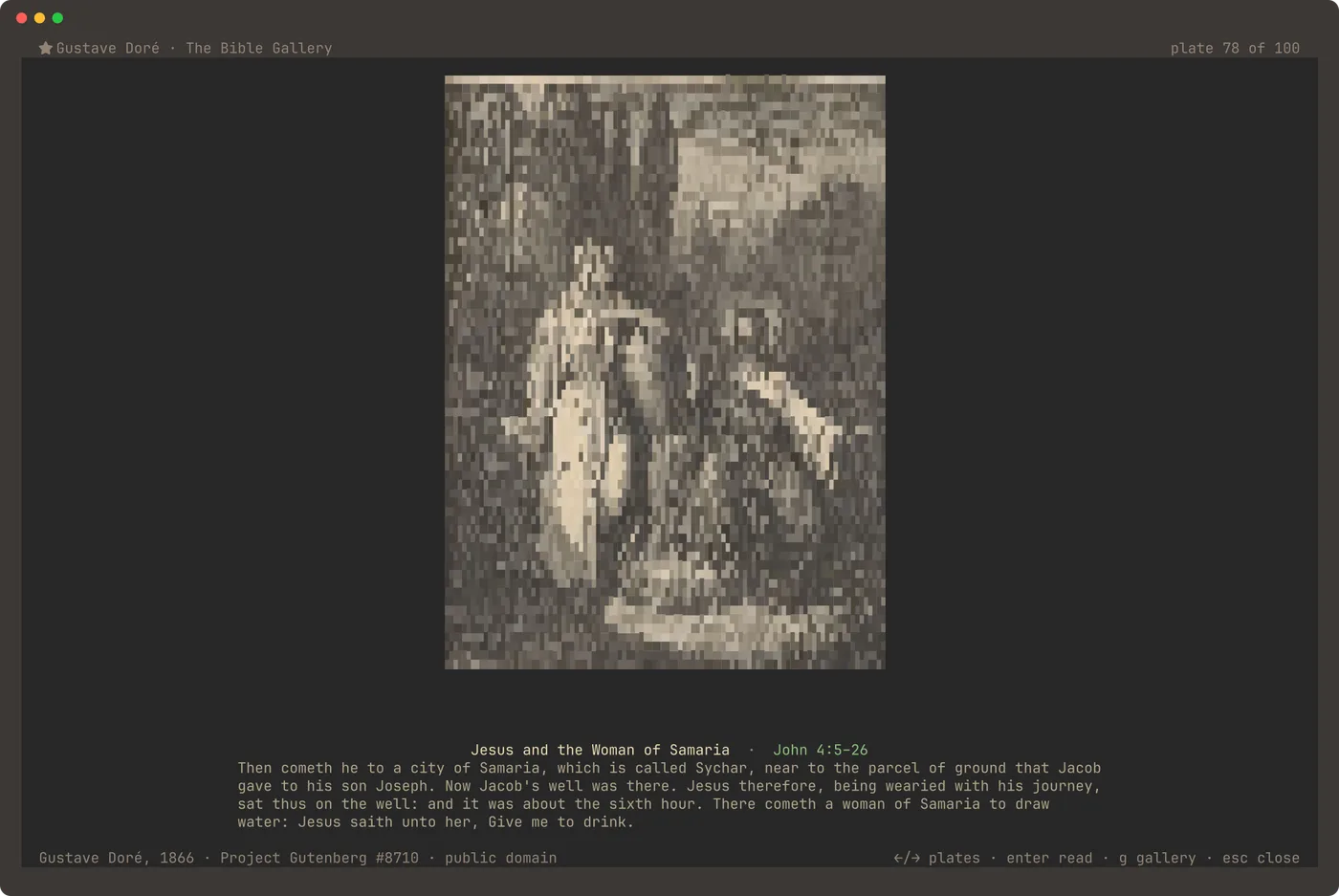
Gustave Doré made 100 engravings for the Bible in 1866. Selah shows each one at the passage it depicts. Install them once, about 17 MB:
selah install scenes
When a chapter has an engraving, the header shows ✦. Press i to open it.
←and→walk the gallery.glists all 100.enteropens the passage.esccloses it.
They are all on the engravings page too.
Search
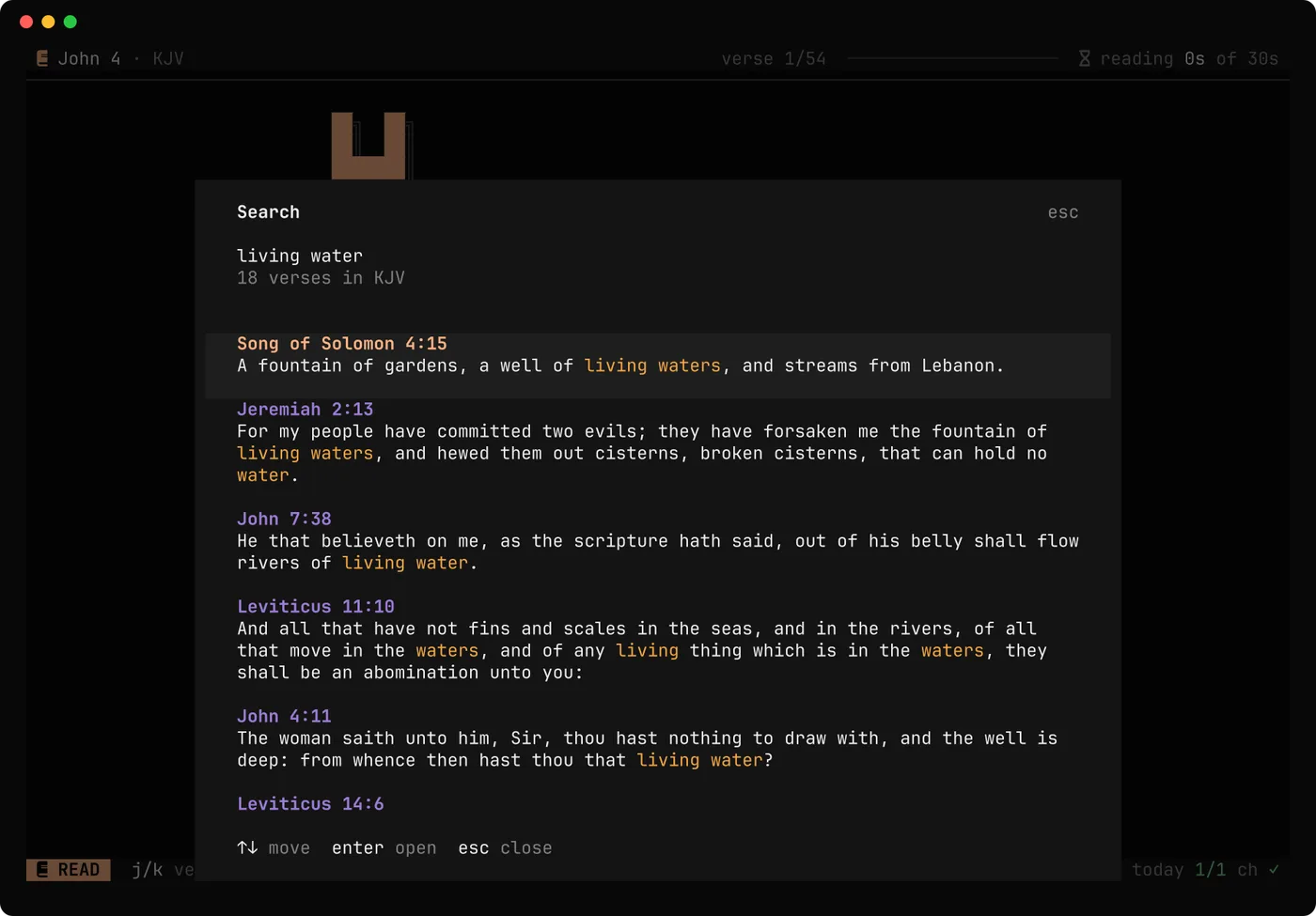
Press / and type. Results are ranked, with your words highlighted.
"living water"in quotes finds the exact phrase.in:psalms,in:otandin:ntnarrow the search.- A Strong's number, such as
G26orH2617, lists every verse that uses that word.
Commands
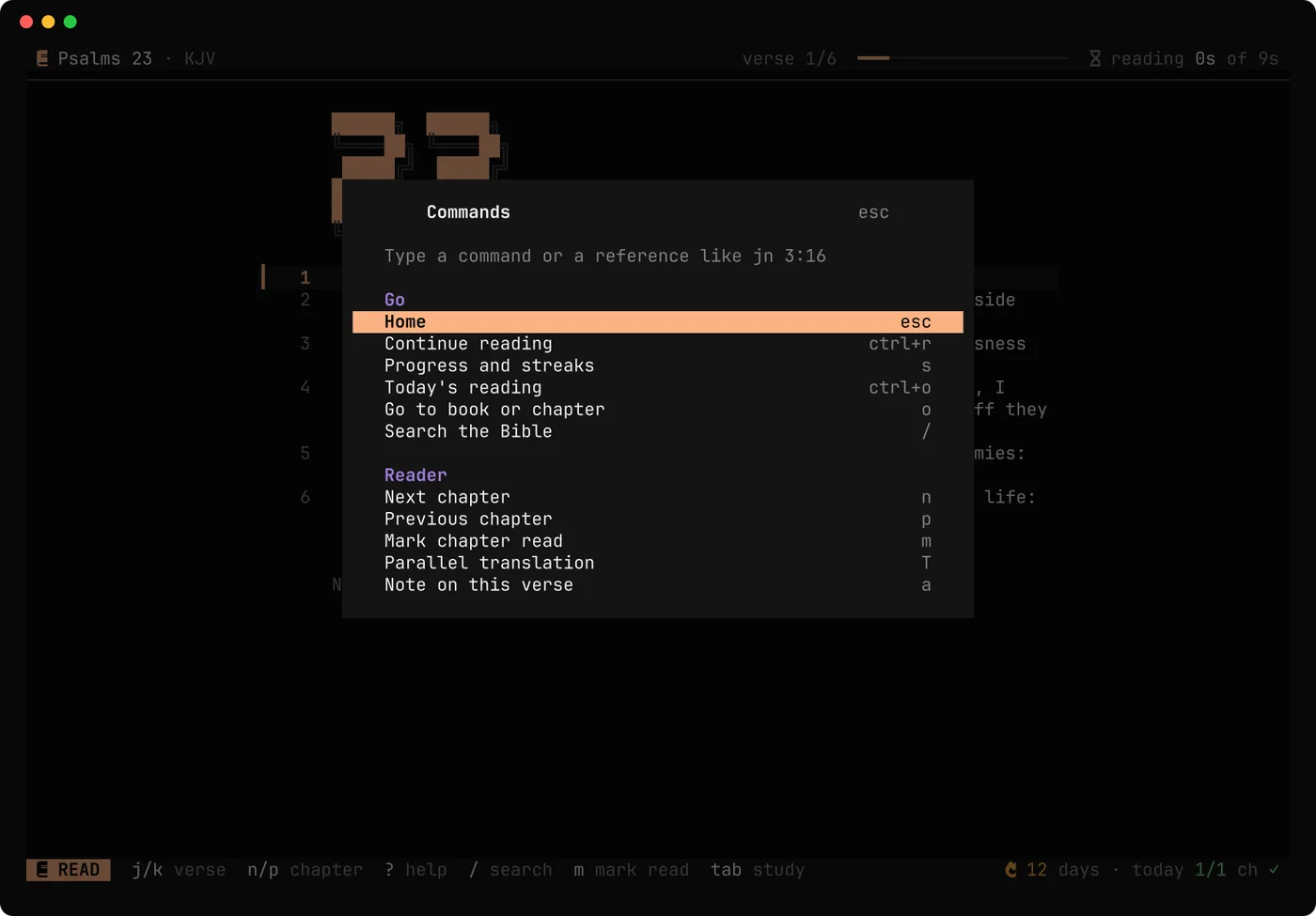
ctrl+p opens a box where you type what you want, in ordinary words: dark, pictures, bigger text, commentary, bookmarks, quit. It also takes passages.
Progress and plans
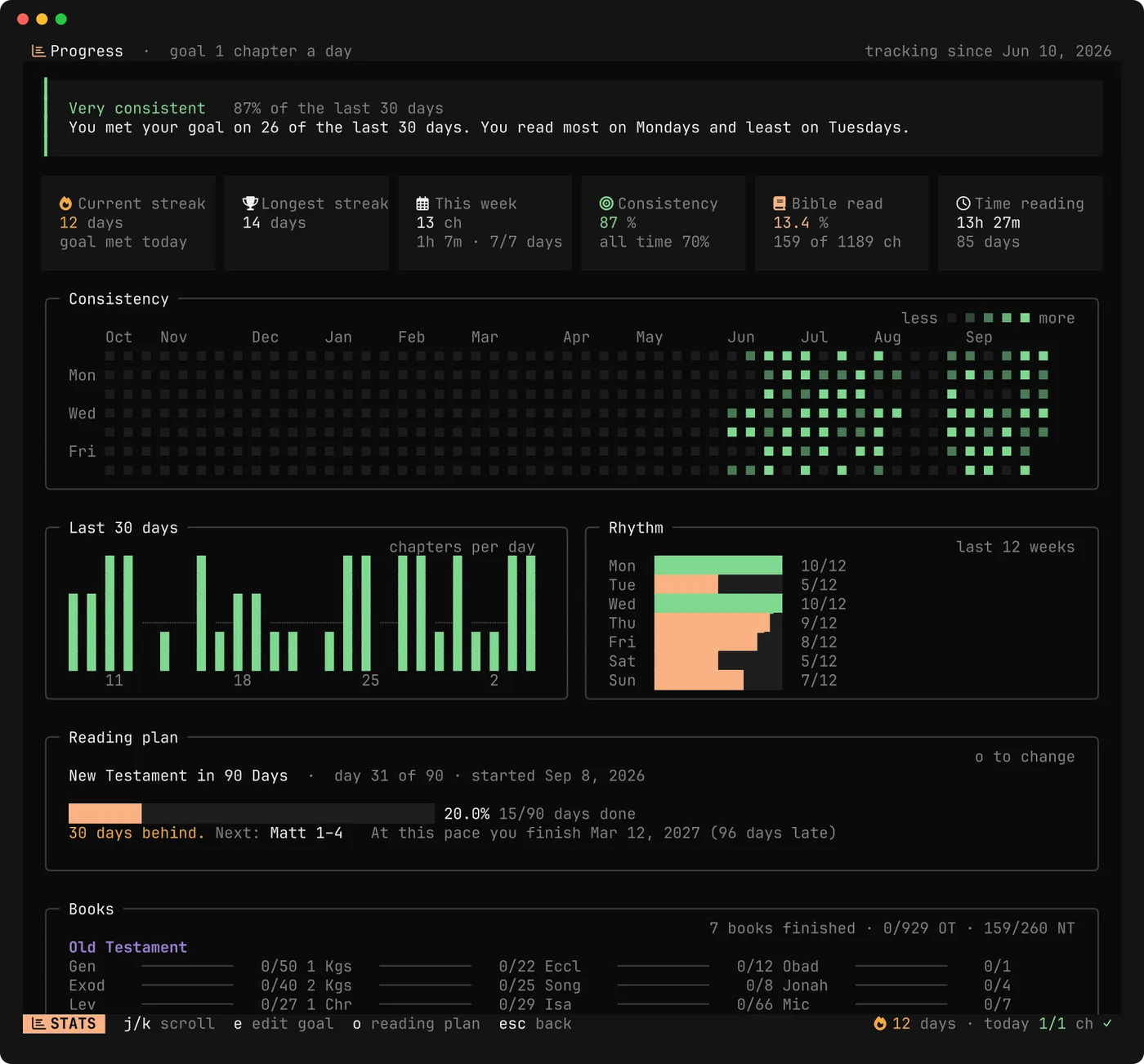
Press s for your progress: your streak, today, consistency over 7, 30 and 365 days, a year's heatmap, and how far through each book you are.
To follow a plan, open the commands with ctrl+p and type plan. There are:
- the Bible in a Year
- the Bible in Two Years
- the New Testament in 90 Days
- the Gospels in 30 Days
- Psalms and Proverbs in a Month
ctrl+o then opens today's reading. Selah tells you how far ahead or behind you are.
How reading counts
- A chapter counts when you reach its end and have spent real time on it. That means 30% of the time it takes to read at 250 words a minute, never more than 30 seconds.
- Time away from the keyboard for more than three minutes is not counted.
- A chapter counts once a day, for the day you started reading it.
mmarks a chapter read yourself, and pressing it again unmarks it.
Translations
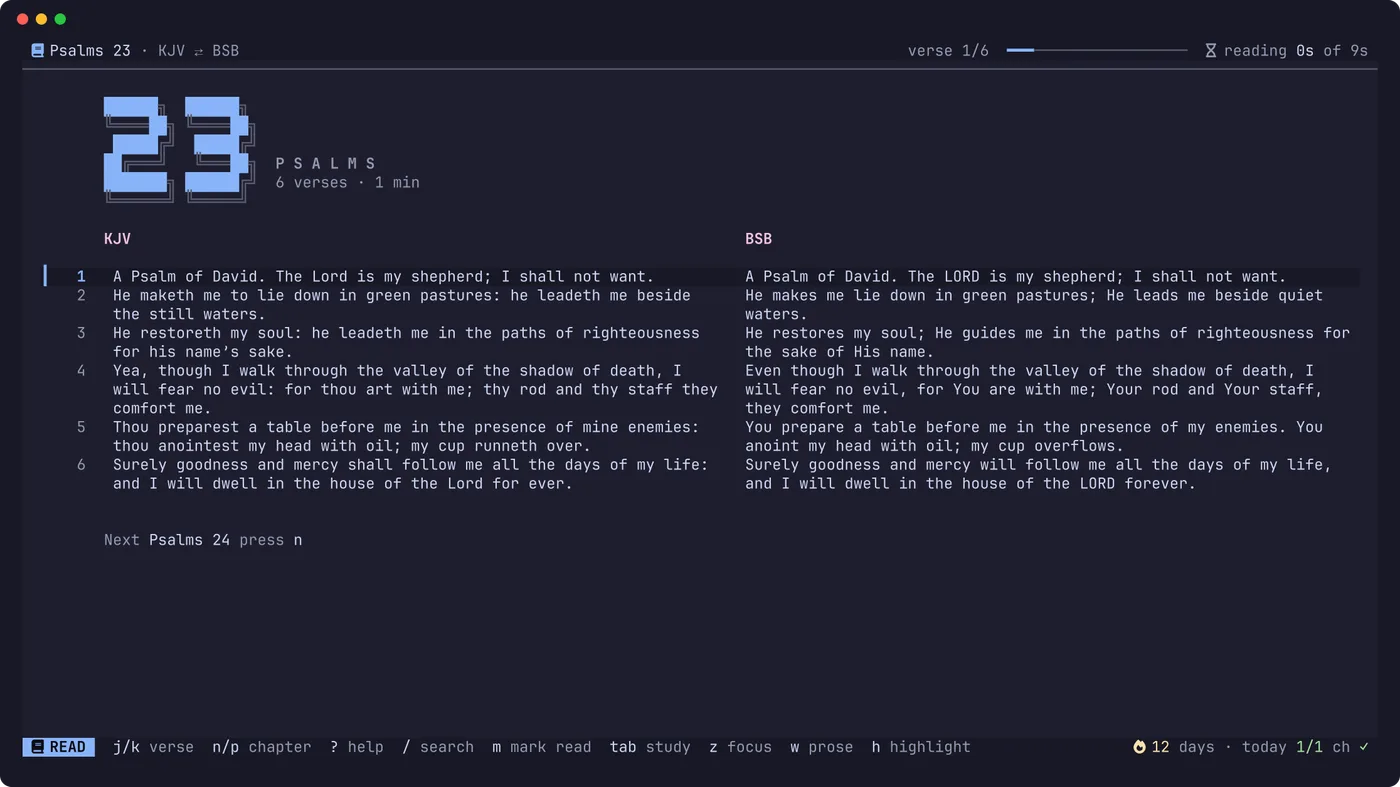
The King James Version and the Berean Standard Bible come with Selah. Three more are in the public domain and one command away:
selah install ASV YLT NHEB
In the reader, t changes the translation and T shows two side by side.
Settings
Most settings are in the commands box (ctrl+p): theme, light or dark, daily goal, icons, translations.
They are saved in a file you can also edit by hand:
- Linux and macOS:
~/.config/selah/config.json - Windows:
%APPDATA%\selah\config.json
It holds:
themeandmode(auto,darkorlight)translationand the daily goalicons:nerd,unicodeornonemotion:full, orreducedto turn the animations offprose,agent, andhebrew(visualorlogical)
The command line
Selah also works without opening the app:
selah 0.3.2  a Bible for the terminal

Usage
  selah                     open the app
  selah <reference>         open at a passage          selah john 3:16
  selah <reference> -p      print a passage and exit   selah ps 23 -p
  selah search <words>      print search results       selah search "living water"
  selah stats [--json]      print streak and progress  (for status bars)
  selah install <id>        download a translation     KJV, BSB, ASV, YLT, NHEB
  selah install commentary  Matthew Henry's Commentary on the Whole Bible
  selah install concordance Hebrew and Greek words with Strong's numbers and lexicons
  selah install scenes      Doré's 100 Bible engravings, shown with the passages
  selah notes export [file] all notes and journals as Markdown
  selah mcp                 serve Selah's tools to Claude Code, Codex or any MCP client
  selah translations        list translations

Options
  -t, --translation <id>    translation to use (default from config)
  -p, --print               print instead of opening the app
  -h, --help                show this help
  -v, --version             show the version
selah stats --json prints your streak in waybar's format, for a status bar.
Where your things are
- Your reading history, highlights, bookmarks and notes are in
user.db. - The Bible texts are in
bible.db, kept separate so that adding or removing a translation never touches your own data. selah --helpprints the exact folders on your computer.
| Linux and macOS | Windows | |
|---|---|---|
| Your data and the texts | ~/.local/share/selah | %LOCALAPPDATA%\selah\data |
| Settings | ~/.config/selah/config.json | %APPDATA%\selah\config.json |
SELAH_HOME puts everything in one folder. selah notes export notes.md writes all your notes and journals as Markdown.
Updating
Run the install line again. It replaces the program and leaves your data alone. To install a particular version, set SELAH_VERSION:
curl -fsSL https://selah.hallelx2.com/install | SELAH_VERSION=v0.3.1 sh
Uninstalling
Delete the program:
- Linux and macOS:
~/.local/bin/selah - Windows: the folder
%LOCALAPPDATA%\Programs\selah
Your notes stay in Selah's data folder until you delete that too.
If something looks wrong
- The colours are off, or there are question marks:
- On Windows, use Windows Terminal.
- Elsewhere, use a terminal with true colour, such as kitty, Ghostty, WezTerm, foot, iTerm2 or GNOME Terminal.
- Icons show as boxes: your font has no Nerd Font icons. In the commands box, type
iconsand pick simple symbols. - Hebrew reads in the wrong direction: set
"hebrew": "logical"in the settings file. Some terminals reverse right-to-left text themselves. - Your terminal mishandles colour queries: Selah asks the terminal for its colours when it starts, and a few terminals answer badly. Start it with
SELAH_NO_PALETTE=1 selahto skip the question. - Something else: start it with
SELAH_DEBUG_LOG=selah.log selah, then open an issue with the log attached.